Customer limits (購入顧客制限)
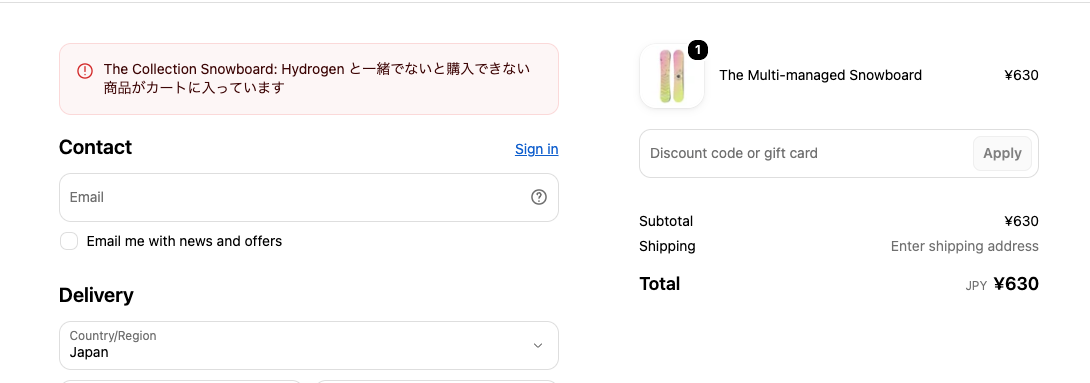
For each target product, you can set conditions for which customers can buy it (login status, customer tags, number of orders, and total amount spent). Customers who do not meet the conditions cannot complete their purchase at checkout.
How to create
1. Click the 「作成する」(Create) button.

2. After clicking the button, the following page opens.
You can set up the rule on this page.
▪️「ルール名」(Rule name)

A name that helps you tell rules apart. It is optional and can be up to 50 characters.
When you give a rule a name, the name is shown in the rule list and on the reordering page, and it becomes the heading of the rule's detail page.
The rule name is not used for checking orders, so changing it does not change how checkout works or which message is shown.
▪️「ルールの状態」(Rule status)
You can switch the rule status between the following three options.

①「有効」(Active)
The rule is applied to your store right away. Choose this for normal use.
②「無効」(Inactive)
The rule is turned off for now. Use this when you want to stop a rule without deleting its settings.
③「テスト」(Test)
Choose this when you want to check how a rule works without affecting your customers.
See how to test rules
▪️「商品を選択」(Select products)
Select the target products.
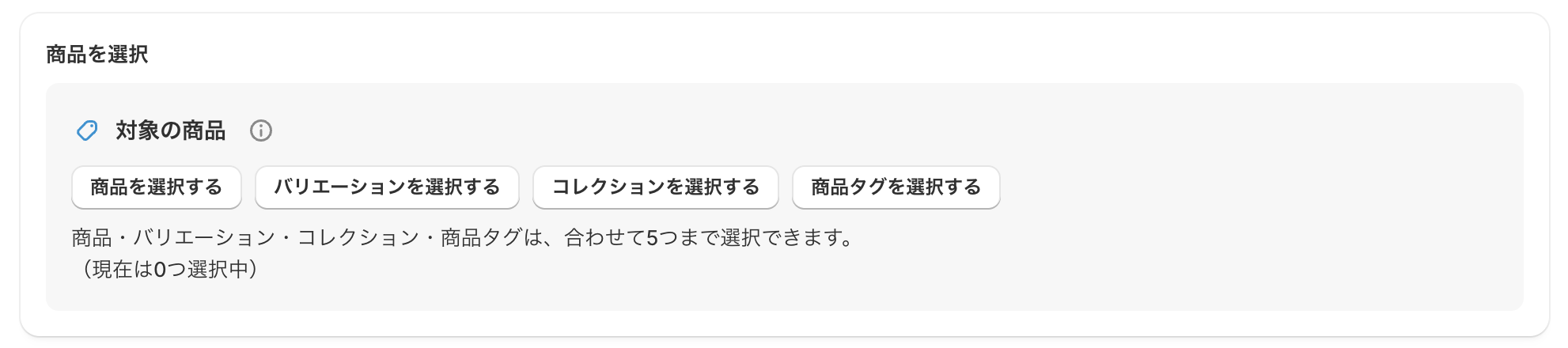
「対象の商品」(Target products)
Set the products that only customers who meet conditions such as login status and customer tags can buy.
What is included
・If you select a product tag
All products with that tag are limited.
・If you select a collection
All products in that collection are limited.
①「商品を選択する」(Select products)
②「バリエーションを選択する」(Select variants)
③「コレクションを選択する」(Select collections)
④「商品タグを選択する」(Select product tags)
* You can choose up to 5 items in total from ① to ④.
▪️「購入できるお客様の条件を指定」(Conditions for customers who can buy)
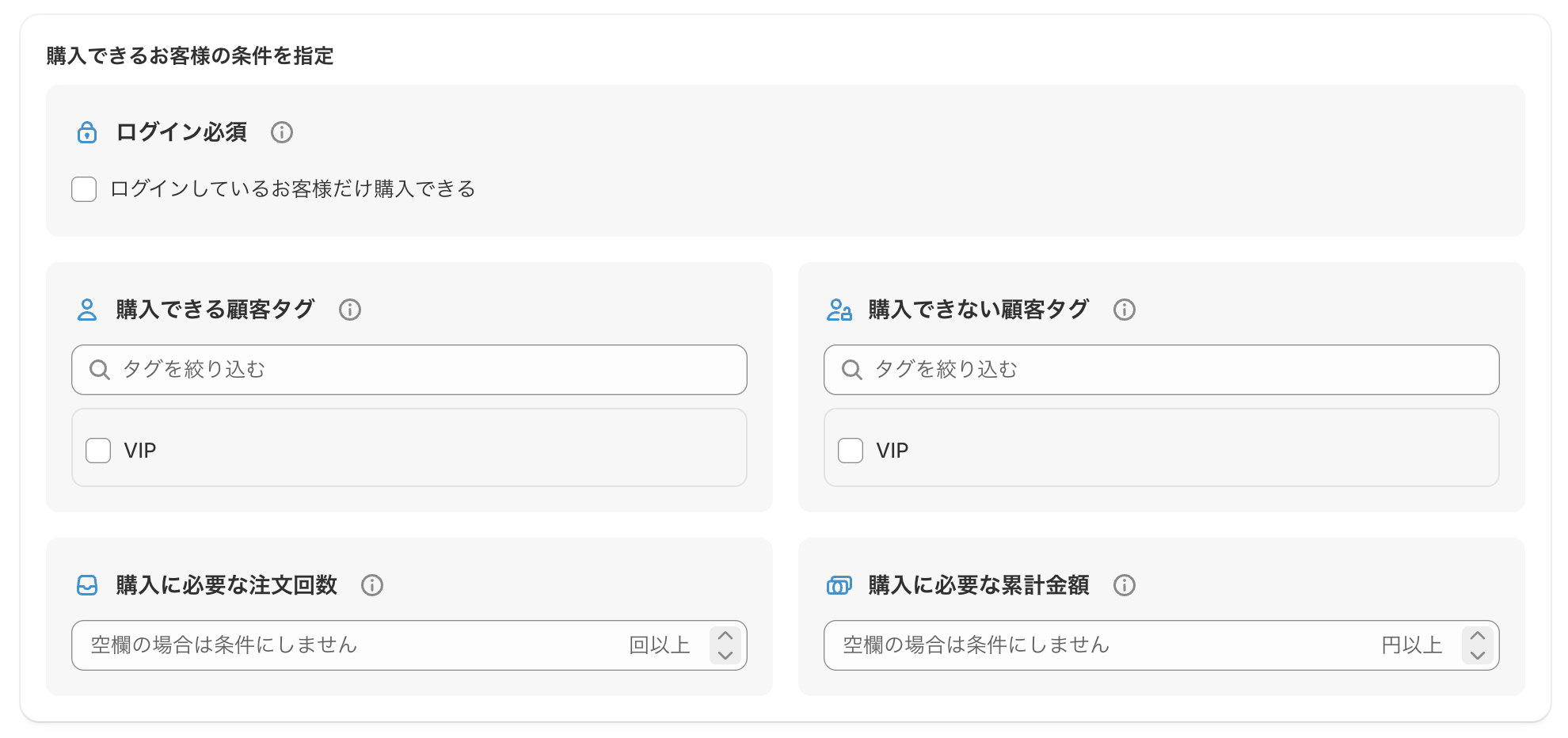
「ログイン必須」(Login required)
「ログインしているお客様だけ購入できる」(Only logged-in customers can buy)
「購入できる顧客タグ」(Customer tags that can buy)
Only customers with the selected tags can buy. (Example: VIP, General, First)
「購入できない顧客タグ」(Customer tags that cannot buy)
Customers with the selected tags are blocked from buying. (Example: Blacklist, Restricted)
「購入に必要な注文回数」(Number of orders required to buy)
Limits buying to customers whose number of past orders is at least the number you set. (Example: 3 or more)
「購入に必要な累計金額」(Total amount spent required to buy)
Limits buying to customers whose total amount spent is at least the amount you set. (Example: ¥10,000 or more)
▪️「表示を指定」(Display)
The display settings work when you open the theme editor and turn on 「購入制限の表示」(Purchase limit display).
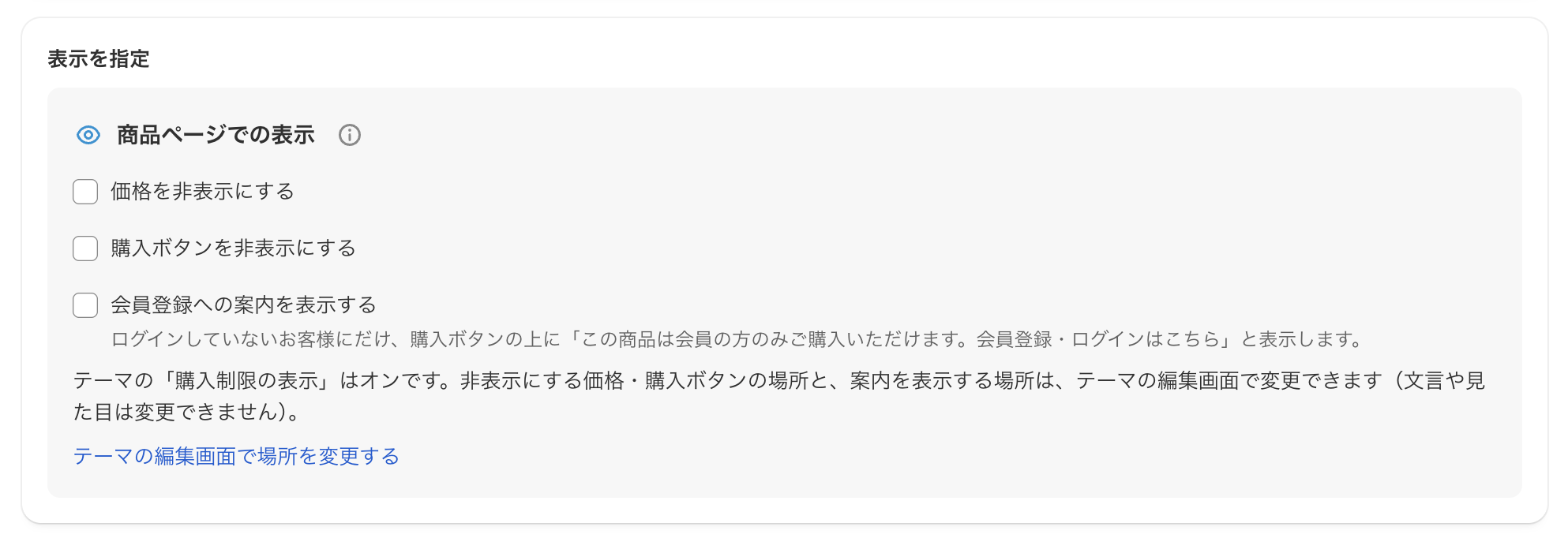
When this is turned on, you can control what is shown on product pages to non-members and customers who do not meet the conditions. You can choose from the following three settings.
①「価格を非表示にする」(Hide price)
Hides the product price.
②「購入ボタンを非表示にする」(Hide buy buttons)
Hides buy buttons such as "Add to cart" and "Buy it now".
③「会員登録への案内を表示する」(Show a sign-up message)
Shows a message (with a link) that asks customers to sign up or log in.
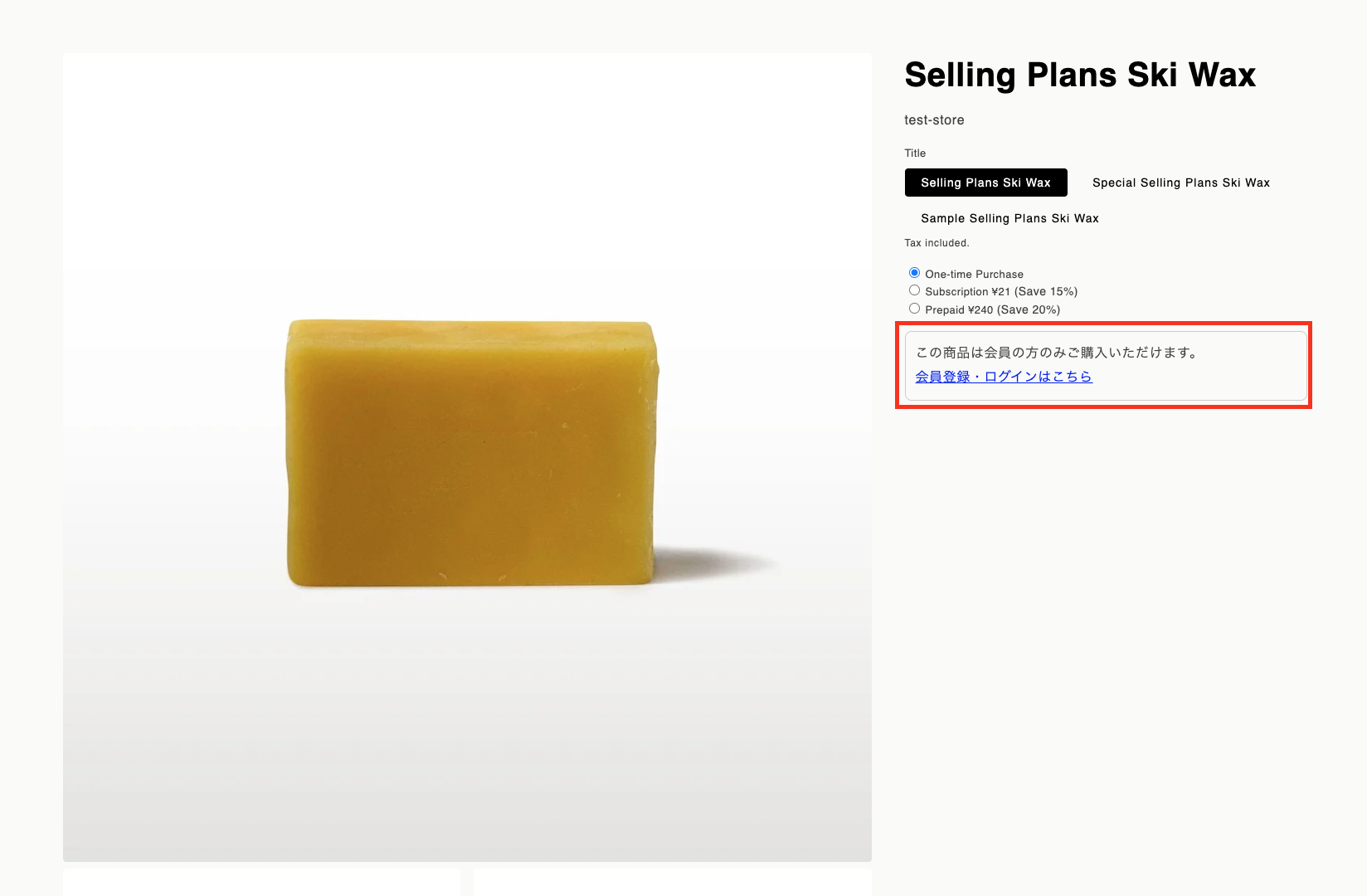
The preview above shows how the page looks when 「価格を非表示にする」(Hide price), 「購入ボタンを非表示にする」(Hide buy buttons), and 「会員登録への案内を表示する」(Show a sign-up message) are all turned on.
▪️「ルールを適用外にするカート小計の金額」(Cart subtotal that exempts this rule)

When the rule is not applied
When the cart subtotal is equal to or greater than the amount you set, this rule is not applied.
When the rule is always applied
・When the customer buys in a currency different from your store's currency
・When the field is left blank
[Example]
Amount set: ¥5,000
Case A: The cart subtotal is ¥3,000
Less than ¥5,000 ➔ The rule is applied
Case B: The cart subtotal is exactly ¥5,000
¥5,000 or more ➔ The rule is not applied
Case C: The cart subtotal is ¥8,000
¥5,000 or more ➔ The rule is not applied
Case D: The cart subtotal is ¥8,000, but the customer buys in US dollars
Different currency from the store ➔ The rule is applied
▪️「メッセージ」(Message)
The message you set is shown at the top of the checkout page.
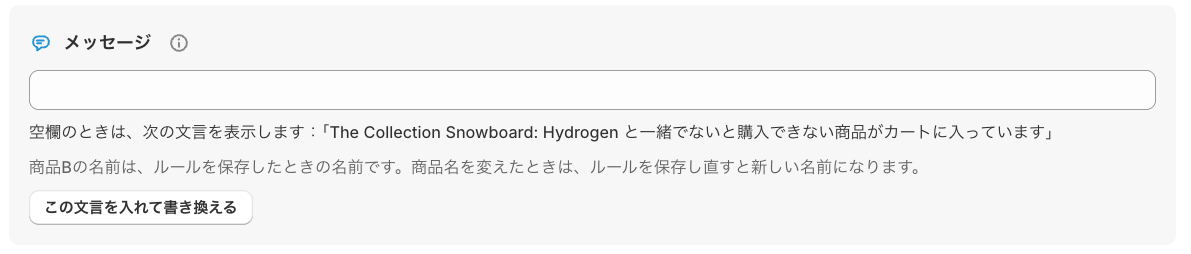
Click 「この文言を入れて書き換える」(Insert this text and edit) to fill in a message that matches the rule.

How it looks to customers